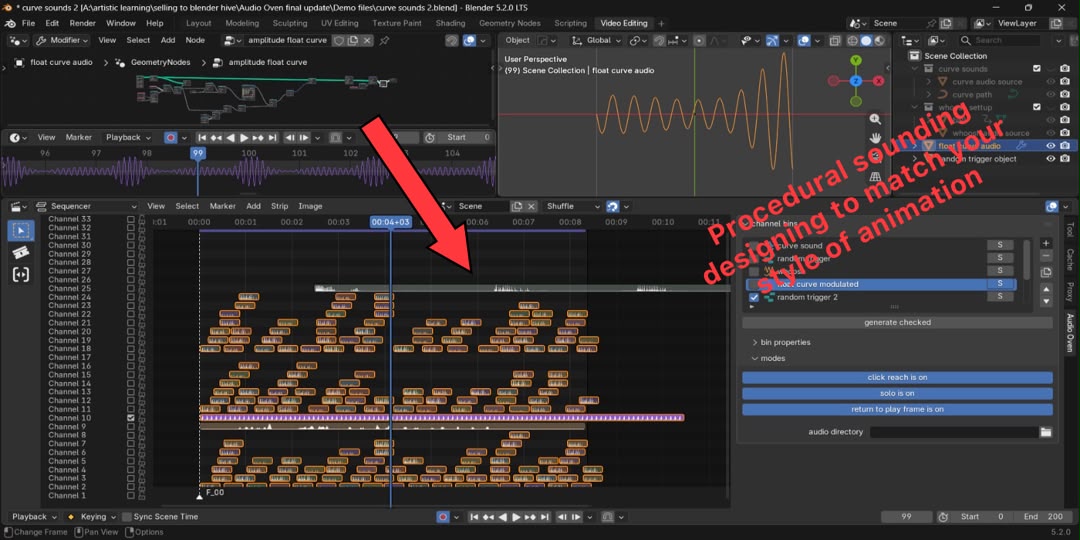
Our Aim is simple, we target on trying to answer a question...how can we make the sound design process faster ,easier ,procedural and very user friendly ...and make the audio be true to the animation and match almost 95% of the time...and that is all answered by Audio Oven Plus . Audio Oven plus turns animated mesh data into sound: trigger audio strips, generate audio from Geometry Nodes, and keep your Video Sequencer organised and it makes the it so easy to navigate through 128 channels in the VSE through the organization you already set
**A.W.D: Audio Waveform Display for Blender**
See your sound, right where you animate.
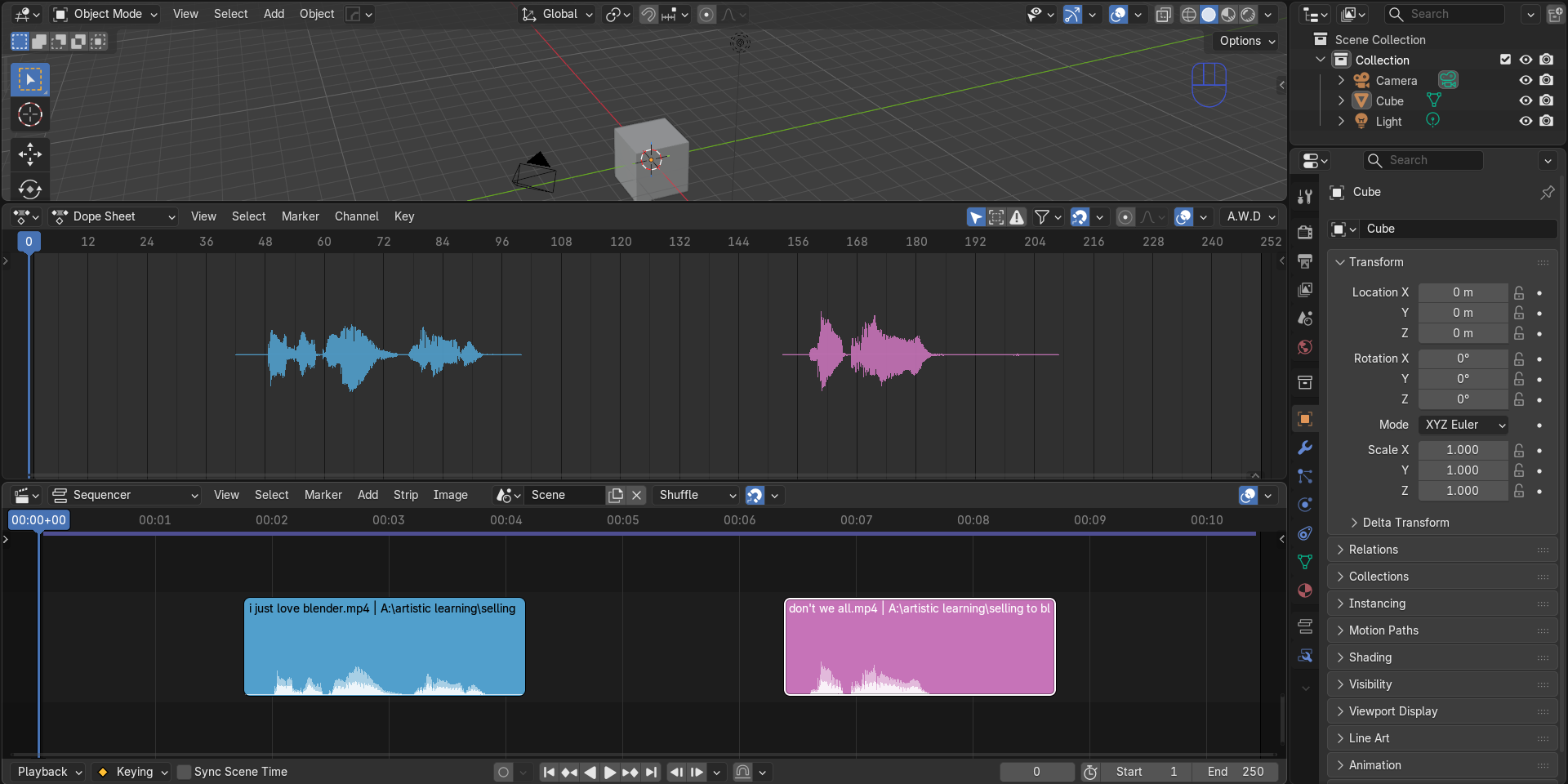
A.W.D draws the real waveform of your audio directly on top of the Timeline, Dope Sheet, Graph Editor and NLA, so you can see exactly where each sound starts, stops and peaks while you keystone your animation. It's built for lip-sync, sound design and anyone who wants to animate to audio without guessing.
**Why A.W.D**
Blender's Timeline waveform is a rough preview. A.W.D shows the actual signed waveform, with negative and positive samples drawn as they really are, so phonemes, hits, breaths and pauses are easy to read at a glance. Zoom in far enough and it shows the individual samples. Zoom out and it stays fast, even on long audio.
**Features**
- Real, signed waveform with no absolute-value shortcuts
- Works in the Timeline, Dope Sheet, Graph Editor and NLA
- Adaptive drawing that shows a clean min/max outline when zoomed out and the true sample curve with sample markers when zoomed in
- Fast on long audio files, with a built-in multi-level cache
- Pick any VSE channel to display; every sound strip in that channel is drawn
- Respects strip position, trimming and offsets, so the waveform lines up with your sound strips
- Follows strip volume, including animated volume and fades
- Muted strips are shown dimmed
- Optional strip color tags, or the default bright green
- Adjustable waveform scale (0 to 1) with clamping at the top and bottom of the editor
- Updates automatically when strips, channel, volume, mute, color or audio files change
- One-click Update Waveform button to force a fresh read of your audio
- Supports packed sounds
- Status and error messages in the panel, so you always know what is being drawn
**How to use**
1. Add your sound strips to a channel in the Video Sequencer.
2. Open the Timeline, Dope Sheet, Graph Editor or NLA.
3. Open the sidebar (N) and go to the **A.W.D** tab, or use the **A.W.D** menu in the Timeline header.
4. Turn on **display waveform**.
5. Set **channel displayed** to the channel that holds your audio.
6. Adjust **waveform scale** to taste, and optionally turn on **use strips color tag**.
Scrub, zoom and animate. The waveform stays aligned with your timeline.
**Perfect for**
- Lip-sync and dialogue animation
- Music-driven animation and motion graphics
- Sound effect timing and hit sync
- Cutting and editing audio-driven scenes
**Compatibility**
- Blender 5.2 and newer
- Requires NumPy, which is included with Blender
- Supports the audio formats Blender can read
Stop guessing where the sound is. Start animating to it.