Product listing
auto-Constraints: Effortless 2D constraints for 3D tools
By SpaghetMeNot ·
From $10.00
Listing details
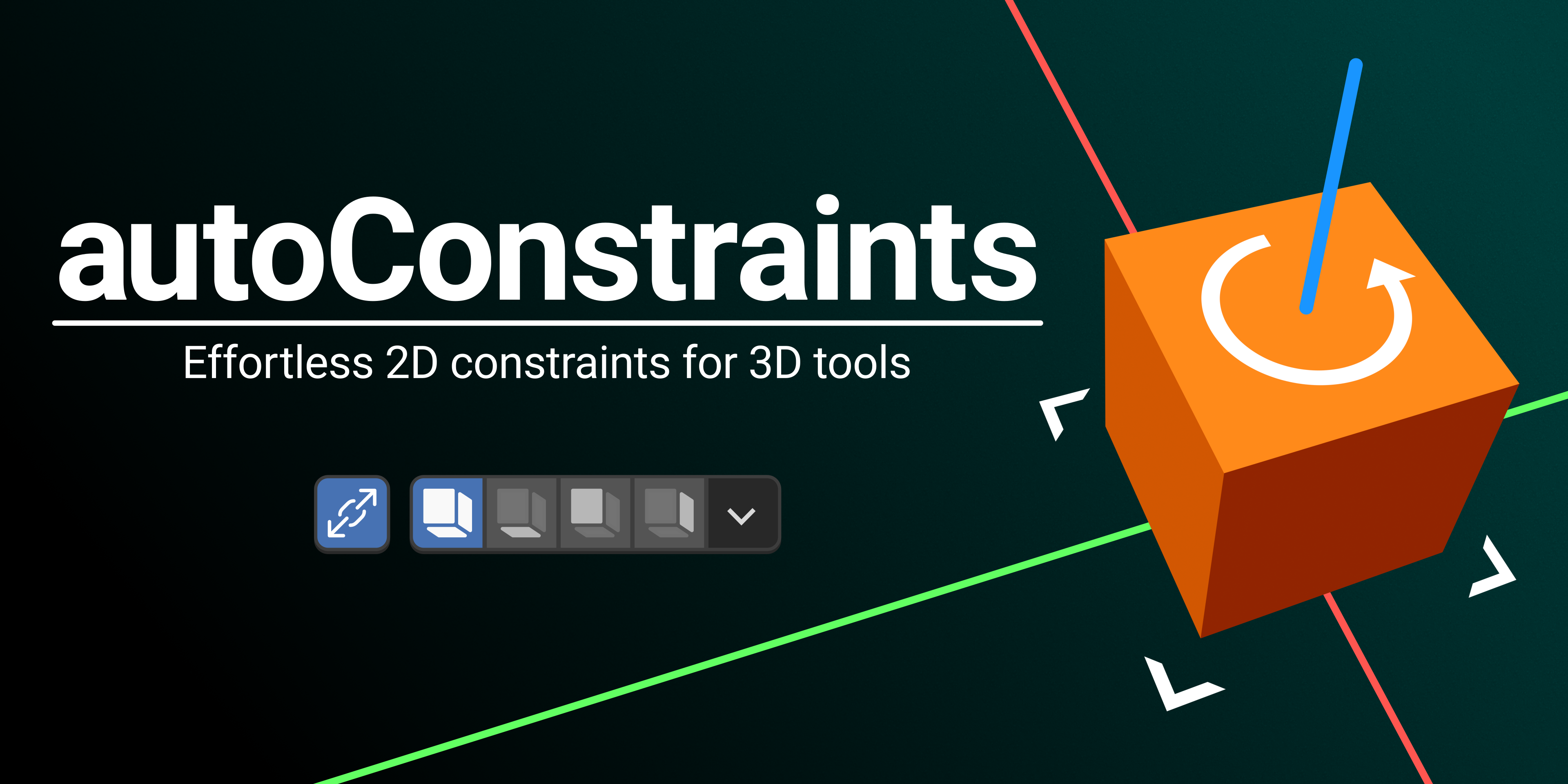
autoConstraints is a Blender add-on designed to make working in 3D easier, faster and more intuitive. Transform with the speed of Blender's gestural hotkeys and the accuracy of gizmos! Reduce the guesswork of working in the 3D viewport by automatically applying axis-constraints to a variety of 3D tools: - No need to manually apply constraints to every operation - No switching in and out of orthographic views - No clicking small parts of gizmos
Categories
Tags
Compare with other products
Choose a category to find products to compare with this listing.
Variants
-
Personal published
Price: $10.00 · List price: $10.00
Variant versions
-
2.0.0-dev published
Created Nov 5, 2026 · Published Nov 5, 2026
Release notes (source)
<p><b>2.0.0-dev2</b></p><p><b>Simple Toolbar Mode<br></b>A new toolbar mode between Expanded and Compact, and the new default. It shows Automatic and one fixed plane button that uses the last fixed plane you picked. Click again to cycle through planes.<br><b><br>Grid Labels<br></b>Distances are shown along both grid axes, in the scene's units. Toggle them with the tag icon next to Opacity.<b><br><br>Grid Look<br></b>- Line color modes:<br> - Auto (default): lighter or darker than the viewport background<br> - Theme: Blender's theme Grid color<br> - Custom: a color you pick<br>- Material Preview and Rendered: Auto can't read the background there, so choose Light or Dark lines under the Line color<br>- New Axes section in Grid Appearance: Brightness, Opacity and Label Shadow<br>- Thin lines (Line Width below 1) are boosted so they stay visible<br>- Toggle with Constraints is now a full-width button above Grid Appearance<b><br><br>Set Workplane<br></b>Each run now starts from Selection.<b><br><br>Fixes<br></b>- Icons no longer flicker about 2 seconds after Blender starts or the add-on is reloaded<br>- Icons that aren't on screen at startup (such as the Off toggle) no longer briefly show a loading icon the first time they appear</p><p><b><br></b></p><p><b>2.0.0-dev1</b><br>First dev build of 2.0<br><br><b>Transform Grid</b><br>A grid in the viewport showing the plane autoConstraints will use.<br>- Toggle and dropdown menu in the toolbar<br>- Workplane operators to move, orient and use the 3D cursor for transforms:<br> - Set Workplane [Shift + Q]: sets the 3D cursor and Cursor orientation, and shows the grid. Modes:<br> - Selection: moves and orients the cursor to the selection<br> - 3D Cursor: uses the cursor where it is<br> - Clear: restores the previous orientation (and cursor, if unmoved)<br> - Align Workplane: aligns the X or Y axis (and optionally the normal) to the selection<br>- Grid Center: where the grid is drawn (default Active Orientation)<br>- Freeze Local Grid: keeps the grid in place while moving or rotating<br>- Toggle with Constraints: hides the grid while auto-constraints are off<br>- Grid Appearance: opacity, colors, screen size etc.<br><br><b>Pop-up Menu</b><br>Constraints and grid menus at the mouse. [Alt + X] by default, changeable in preferences.<br><br><b>Axis Bias</b><br>Reworked and always on. Shown with the automatic plane: pick axes and one bias amount. Biases towards XY by default.<br><br><b>Curve Draw Constraints</b><br>Curve draw and pen tools now use the constraint plane (can be turned off in the constraints menu). With Surface depth, draw can use the start point's depth, the end's, an average, or blend between them.<br><br><b>Add Primitive tools</b><br>Blender's interactive add tools can draw directly on the transform grid. there is a new "Use autoConstraints" toggle in the add tool's dropdown to ensure the orientation is correct. Use the following settings to snap to grid: <br>- Depth: Cursor Plane<br>- Orientation: Default<br><br><b>Compact by Default</b><br>With the grid toggle and the pop-up menu, the toolbar is now compact by default. Changeable in preferences.</p><p><br><br></p>
-
1.4.2 published
Created Nov 5, 2026 · Published Nov 5, 2026
Release notes (source)
<p><br></p>
-
-
Studio - up to 5 published
Price: $45.00 · List price: $45.00
Variant versions
-
2.0.0-dev published
Created Nov 5, 2026 · Published Nov 5, 2026
Release notes (source)
<p><b>2.0.0-dev2</b></p><p><b>Simple Toolbar Mode<br></b>A new toolbar mode between Expanded and Compact, and the new default. It shows Automatic and one fixed plane button that uses the last fixed plane you picked. Click again to cycle through planes.<br><b><br>Grid Labels<br></b>Distances are shown along both grid axes, in the scene's units. Toggle them with the tag icon next to Opacity.<b><br><br>Grid Look<br></b>- Line color modes:<br> - Auto (default): lighter or darker than the viewport background<br> - Theme: Blender's theme Grid color<br> - Custom: a color you pick<br>- Material Preview and Rendered: Auto can't read the background there, so choose Light or Dark lines under the Line color<br>- New Axes section in Grid Appearance: Brightness, Opacity and Label Shadow<br>- Thin lines (Line Width below 1) are boosted so they stay visible<br>- Toggle with Constraints is now a full-width button above Grid Appearance<b><br><br>Set Workplane<br></b>Each run now starts from Selection.<b><br><br>Fixes<br></b>- Icons no longer flicker about 2 seconds after Blender starts or the add-on is reloaded<br>- Icons that aren't on screen at startup (such as the Off toggle) no longer briefly show a loading icon the first time they appear</p><p><b><br></b></p><p><b>2.0.0-dev1</b><br>First dev build of 2.0<br><br><b>Transform Grid</b><br>A grid in the viewport showing the plane autoConstraints will use.<br>- Toggle and dropdown menu in the toolbar<br>- Workplane operators to move, orient and use the 3D cursor for transforms:<br> - Set Workplane [Shift + Q]: sets the 3D cursor and Cursor orientation, and shows the grid. Modes:<br> - Selection: moves and orients the cursor to the selection<br> - 3D Cursor: uses the cursor where it is<br> - Clear: restores the previous orientation (and cursor, if unmoved)<br> - Align Workplane: aligns the X or Y axis (and optionally the normal) to the selection<br>- Grid Center: where the grid is drawn (default Active Orientation)<br>- Freeze Local Grid: keeps the grid in place while moving or rotating<br>- Toggle with Constraints: hides the grid while auto-constraints are off<br>- Grid Appearance: opacity, colors, screen size etc.<br><br><b>Pop-up Menu</b><br>Constraints and grid menus at the mouse. [Alt + X] by default, changeable in preferences.<br><br><b>Axis Bias</b><br>Reworked and always on. Shown with the automatic plane: pick axes and one bias amount. Biases towards XY by default.<br><br><b>Curve Draw Constraints</b><br>Curve draw and pen tools now use the constraint plane (can be turned off in the constraints menu). With Surface depth, draw can use the start point's depth, the end's, an average, or blend between them.<br><br><b>Add Primitive tools</b><br>Blender's interactive add tools can draw directly on the transform grid. there is a new "Use autoConstraints" toggle in the add tool's dropdown to ensure the orientation is correct. Use the following settings to snap to grid: <br>- Depth: Cursor Plane<br>- Orientation: Default<br><br><b>Compact by Default</b><br>With the grid toggle and the pop-up menu, the toolbar is now compact by default. Changeable in preferences.</p><p><br><br></p>
-
1.4.2 published
Created Nov 5, 2026 · Published Nov 5, 2026
Release notes (source)
<p><br></p>
-
-
Studio - up to 10 published
Price: $80.00 · List price: $80.00
Variant versions
-
2.0.0-dev published
Created Nov 5, 2026 · Published Nov 5, 2026
Release notes (source)
<p><b>2.0.0-dev2</b></p><p><b>Simple Toolbar Mode<br></b>A new toolbar mode between Expanded and Compact, and the new default. It shows Automatic and one fixed plane button that uses the last fixed plane you picked. Click again to cycle through planes.<br><b><br>Grid Labels<br></b>Distances are shown along both grid axes, in the scene's units. Toggle them with the tag icon next to Opacity.<b><br><br>Grid Look<br></b>- Line color modes:<br> - Auto (default): lighter or darker than the viewport background<br> - Theme: Blender's theme Grid color<br> - Custom: a color you pick<br>- Material Preview and Rendered: Auto can't read the background there, so choose Light or Dark lines under the Line color<br>- New Axes section in Grid Appearance: Brightness, Opacity and Label Shadow<br>- Thin lines (Line Width below 1) are boosted so they stay visible<br>- Toggle with Constraints is now a full-width button above Grid Appearance<b><br><br>Set Workplane<br></b>Each run now starts from Selection.<b><br><br>Fixes<br></b>- Icons no longer flicker about 2 seconds after Blender starts or the add-on is reloaded<br>- Icons that aren't on screen at startup (such as the Off toggle) no longer briefly show a loading icon the first time they appear</p><p><b><br></b></p><p><b>2.0.0-dev1</b><br>First dev build of 2.0<br><br><b>Transform Grid</b><br>A grid in the viewport showing the plane autoConstraints will use.<br>- Toggle and dropdown menu in the toolbar<br>- Workplane operators to move, orient and use the 3D cursor for transforms:<br> - Set Workplane [Shift + Q]: sets the 3D cursor and Cursor orientation, and shows the grid. Modes:<br> - Selection: moves and orients the cursor to the selection<br> - 3D Cursor: uses the cursor where it is<br> - Clear: restores the previous orientation (and cursor, if unmoved)<br> - Align Workplane: aligns the X or Y axis (and optionally the normal) to the selection<br>- Grid Center: where the grid is drawn (default Active Orientation)<br>- Freeze Local Grid: keeps the grid in place while moving or rotating<br>- Toggle with Constraints: hides the grid while auto-constraints are off<br>- Grid Appearance: opacity, colors, screen size etc.<br><br><b>Pop-up Menu</b><br>Constraints and grid menus at the mouse. [Alt + X] by default, changeable in preferences.<br><br><b>Axis Bias</b><br>Reworked and always on. Shown with the automatic plane: pick axes and one bias amount. Biases towards XY by default.<br><br><b>Curve Draw Constraints</b><br>Curve draw and pen tools now use the constraint plane (can be turned off in the constraints menu). With Surface depth, draw can use the start point's depth, the end's, an average, or blend between them.<br><br><b>Add Primitive tools</b><br>Blender's interactive add tools can draw directly on the transform grid. there is a new "Use autoConstraints" toggle in the add tool's dropdown to ensure the orientation is correct. Use the following settings to snap to grid: <br>- Depth: Cursor Plane<br>- Orientation: Default<br><br><b>Compact by Default</b><br>With the grid toggle and the pop-up menu, the toolbar is now compact by default. Changeable in preferences.</p><p><br></p>
-
1.4.2 published
Created Nov 5, 2026 · Published Nov 5, 2026
Release notes (source)
<p><br></p>
-
-
Studio - up to 20 published
Price: $150.00 · List price: $150.00
Variant versions
-
2.0.0-dev published
Created Nov 5, 2026 · Published Nov 5, 2026
Release notes (source)
<p><b>2.0.0-dev2</b></p><p><b>Simple Toolbar Mode<br></b>A new toolbar mode between Expanded and Compact, and the new default. It shows Automatic and one fixed plane button that uses the last fixed plane you picked. Click again to cycle through planes.<br><b><br>Grid Labels<br></b>Distances are shown along both grid axes, in the scene's units. Toggle them with the tag icon next to Opacity.<b><br><br>Grid Look<br></b>- Line color modes:<br> - Auto (default): lighter or darker than the viewport background<br> - Theme: Blender's theme Grid color<br> - Custom: a color you pick<br>- Material Preview and Rendered: Auto can't read the background there, so choose Light or Dark lines under the Line color<br>- New Axes section in Grid Appearance: Brightness, Opacity and Label Shadow<br>- Thin lines (Line Width below 1) are boosted so they stay visible<br>- Toggle with Constraints is now a full-width button above Grid Appearance<b><br><br>Set Workplane<br></b>Each run now starts from Selection.<b><br><br>Fixes<br></b>- Icons no longer flicker about 2 seconds after Blender starts or the add-on is reloaded<br>- Icons that aren't on screen at startup (such as the Off toggle) no longer briefly show a loading icon the first time they appear</p><p><b><br></b></p><p><b>2.0.0-dev1</b><br>First dev build of 2.0<br><br><b>Transform Grid</b><br>A grid in the viewport showing the plane autoConstraints will use.<br>- Toggle and dropdown menu in the toolbar<br>- Workplane operators to move, orient and use the 3D cursor for transforms:<br> - Set Workplane [Shift + Q]: sets the 3D cursor and Cursor orientation, and shows the grid. Modes:<br> - Selection: moves and orients the cursor to the selection<br> - 3D Cursor: uses the cursor where it is<br> - Clear: restores the previous orientation (and cursor, if unmoved)<br> - Align Workplane: aligns the X or Y axis (and optionally the normal) to the selection<br>- Grid Center: where the grid is drawn (default Active Orientation)<br>- Freeze Local Grid: keeps the grid in place while moving or rotating<br>- Toggle with Constraints: hides the grid while auto-constraints are off<br>- Grid Appearance: opacity, colors, screen size etc.<br><br><b>Pop-up Menu</b><br>Constraints and grid menus at the mouse. [Alt + X] by default, changeable in preferences.<br><br><b>Axis Bias</b><br>Reworked and always on. Shown with the automatic plane: pick axes and one bias amount. Biases towards XY by default.<br><br><b>Curve Draw Constraints</b><br>Curve draw and pen tools now use the constraint plane (can be turned off in the constraints menu). With Surface depth, draw can use the start point's depth, the end's, an average, or blend between them.<br><br><b>Add Primitive tools</b><br>Blender's interactive add tools can draw directly on the transform grid. there is a new "Use autoConstraints" toggle in the add tool's dropdown to ensure the orientation is correct. Use the following settings to snap to grid: <br>- Depth: Cursor Plane<br>- Orientation: Default<br><br><b>Compact by Default</b><br>With the grid toggle and the pop-up menu, the toolbar is now compact by default. Changeable in preferences.</p><p><br><br></p>
-
1.4.2 published
Created Nov 5, 2026 · Published Nov 5, 2026
Release notes (source)
<p><br></p>
-